

To insert an SVG in PowerPoint, go to Insert, then Pictures, then This Device, and select your file, or use Insert then Icons for built-in vector art. If you plan to recolor or resize parts of it later, paste it first, then use Convert to Shape or Ungroup to turn it into editable PowerPoint objects. Microsoft 365 supports SVG editing on Windows, Mac, and mobile.
TL;DR:
- Embedding SVGs ensures they remain functional and display correctly across different devices and PowerPoint versions without breaking links.
- Converting SVGs to shapes allows detailed editing, but may require ungrouping or importing EMF files if the option isn't initially available.
- Simplifying SVG files by removing unnecessary metadata and complex effects reduces file size and prevents rendering or fidelity issues during export.
- Troubleshooting fidelity problems often involves enabling hardware acceleration, updating Office and graphics drivers, or repairing Office if signs of corruption appear.
- Using tools like Quikturn's logo database or bulk workflows can significantly cut down time when inserting dozens of SVG logos into large presentations.
Table of Contents
- Step-by-step instructions to insert an SVG on desktop, web, and mobile
- Convert and edit an SVG as PowerPoint shapes
- Troubleshooting red X errors and fidelity problems
- Exporting to PDF without losing your vector graphics
- Preparing SVG files so they don't bloat your file size or break on import
- How Quikturn handles vector logos at scale for finance decks
- The rules that actually save you time with SVGs
- Quikturn: a faster path to logo-ready pitch decks
- Sources
- FAQ
Step-by-step instructions to insert an SVG on desktop, web, and mobile
The fastest route on Windows or Mac is the standard picture insertion path, and it works the same way whether you're dropping in a single icon or a client logo pulled from a brand kit.
- Open the slide where you want the graphic, then click Insert.
- Choose Pictures, then This Device, and browse to your SVG file.
- Select the file and click Insert. PowerPoint places it as a single embedded image.
- Resize using a corner handle to preserve the aspect ratio, since SVGs scale without quality loss.
For built-in vector icons rather than your own files, use Insert then Icons instead. This opens a searchable library of SVG icons you can drop straight onto a slide, and they behave the same way as an imported SVG once placed, meaning you can still recolor or convert them.
Drag-and-drop from File Explorer or Finder works too, and it produces the same embedded result as the Insert menu. Copy-paste from a browser is slightly different: if you copy an SVG that's rendered on a webpage and paste it into PowerPoint, the app sometimes interprets it as an image and sometimes as a set of editable shapes right away, depending on how the source page built the graphic.
Embedding is the setting you want in almost every case. An embedded SVG travels inside the PPTX file, so the presentation still displays correctly on another machine, in a client's inbox, or on a shared drive. A linked image, by contrast, points to a file path or URL, and it breaks the moment that file moves or the recipient doesn't have access to it. Since PowerPoint for Microsoft 365 handles embedded SVGs by default through the standard Insert Pictures flow, you rarely need to do anything special to get this behavior. Just avoid the "Link to File" option in the insert dialog unless you have a specific reason to keep the graphic external.
PowerPoint on the web and PowerPoint mobile apps can display and, in many cases, edit SVGs, but the toolset is thinner than on desktop. Convert to Shape may not be available in the browser version, and some older mobile builds only support basic insertion without recoloring. If your Insert menu doesn't show an SVG option at all, check three things first: confirm you're running a current build of Microsoft 365 rather than a perpetual license version like PowerPoint 2016, check that the file extension is genuinely .svg and not a renamed .png, and try inserting on desktop even if you started the deck on web or mobile. Once it's in the file, it will generally display correctly across platforms, even if editing tools differ.
Convert and edit an SVG as PowerPoint shapes
Converting an SVG unlocks the same editing tools you'd use on a native PowerPoint shape: fill color, outline, individual node adjustments, and animation on separate pieces. The option lives on the Graphics Format tab (sometimes labeled Picture Format depending on your version) once the SVG is selected. Click Convert to Shape, and PowerPoint rebuilds the image as a grouped set of DrawingML shapes.

If Convert to Shape isn't visible, right-click the image instead and look for Group, then Ungroup. The first ungroup prompts a conversion dialog, and a second ungroup breaks it into its individual paths. This two-step ungroup is the same underlying mechanism as Convert to Shape, just accessed from a different menu.
When neither option appears, or the conversion behaves oddly after a recent Office update, a few field-tested fixes usually get you unstuck:
- Cut the image with Ctrl+X, then immediately paste it back with Ctrl+V. This forces PowerPoint to re-interpret the SVG data and often restores the missing conversion option, a workaround reported in Microsoft Q&A threads on SVG conversion.
- Copy the SVG directly from Edge or Chrome (right-click the rendered graphic on a webpage, then Copy Image) and paste into PowerPoint, then right-click and choose Ungroup. This frequently produces an editable object when the normal file-based conversion is blocked.
- If those fail, open the SVG in Inkscape, export it as EMF, then insert the EMF file into PowerPoint and ungroup it there. EMF is an older vector format, but PowerPoint has supported ungrouping it for years, so it's a reliable fallback when SVG handling misbehaves.
Once you've ungrouped a complex logo or icon set into dozens of small paths, working with it can get messy fast. Select the pieces you want to keep together, right-click, and choose Group to bundle them back into a manageable object, then repeat for other clusters. Recoloring is done piece by piece: click an individual shape within the group (a second click after selecting the group) and change its fill. For icons with only a handful of paths, this takes seconds. For a detailed logo with fifty or more nodes, budget more time or consider whether you need shape-level editing at all.
Pro Tip: If you only need to recolor a simple icon and don't care about editing individual nodes, skip the full ungroup and use the Graphics Fill color picker on the SVG directly, it applies a single color across the whole icon without breaking it into parts.
Troubleshooting red X errors and fidelity problems
A red X where your image should be almost always traces back to one of three causes: a missing or corrupted graphics filter in your Office installation, a broken file link if the SVG was inserted as linked rather than embedded, or file corruption from a bad save or transfer. Microsoft's troubleshooting guidance recommends working through fixes in order of effort rather than jumping straight to a full reinstall.
- Install pending Office updates, since a missing graphics filter is often patched in a routine update rather than requiring manual installation.
- Re-insert and re-embed the image rather than relying on a copy that may have lost its link.
- Save the presentation to a new local file and reopen it, which clears out corruption tied to the original file.
- If the problem only happens on one machine, try opening the same file on another computer to confirm whether it's a file issue or a local Office installation issue.
A related but distinct problem is the "Content not shown in optimal fidelity" message, which shows up most often in Teams presentations and PowerPoint Live sessions. This is commonly tied to disabled GPU hardware acceleration on the presenting device rather than anything wrong with the file itself.
GPU hardware acceleration is one of the most common fixes for fidelity errors during live presentations, according to Microsoft's own guidance on the issue, which links these errors specifically to acceleration being turned off. Check your graphics settings, enable hardware acceleration if it's disabled, and update your graphics drivers before your next live share, since drivers that are months out of date are a frequent culprit.
If updates and settings changes don't resolve things, run an Office Online Repair from the Windows Control Panel (Apps and Features, select Microsoft 365, then Modify) or through the Mac installer. This rebuilds core Office components without touching your files. Before repairing, check your exact build number under File, then Account, then About PowerPoint, since some fidelity bugs are tied to specific builds and get resolved in the next update rather than needing a repair at all.
Finally, test the SVG file itself outside PowerPoint. Open it in Edge or Chrome and see if it renders cleanly. If the file relies on external CSS references or complex filter effects that live outside the SVG's own code, PowerPoint may not render those the same way a browser does, and simplifying the file before inserting it will save you a repeat trip through this whole checklist. If you're dealing with logos that already look soft or pixelated before you even get to PowerPoint, our guide on fixing blurry logos covers the resolution side of the problem separately.
Exporting to PDF without losing your vector graphics
PDF export is where a lot of otherwise-clean SVG work falls apart, and the most common trap is using Format Background, then Picture Fill, to set a logo or pattern as a slide background. According to a Microsoft Q&A thread on this exact issue, background fills set this way frequently get rasterized into a bitmap during PDF export, even though they display as crisp vectors on screen.
The workaround that repeatedly works for users who've tested it across versions is to stop using Background Fill for vector graphics and instead treat them as regular inserted objects:
- Insert the SVG onto the slide normally through Insert, then Pictures, rather than through Format Background.
- Right-click the image, choose Send to Back, and it will sit behind your text and other content exactly like a background would.
- For a graphic that repeats across many slides, such as a footer logo, add it to a layout in Slide Master view instead of placing it manually on each slide, then apply that layout to the relevant slides.
- Export to PDF and zoom in heavily on the exported file to confirm the edges are still sharp rather than pixelated.
That Slide Master approach solves the recurring-element problem at the same time it solves the rasterization problem, since a single master-level insert propagates to every slide using that layout.
Pro Tip: Before you finalize a client-facing deck, export a test PDF early in the process, even if it's just one slide, so a rasterization surprise doesn't show up the night before delivery.
If you've tried the Slide Master route and a particular graphic still rasterizes on export, for instance one built with SVG filter effects that PowerPoint's PDF engine doesn't fully support, keep a high-resolution PNG version on hand as a fallback, or convert the graphic to EMF in Inkscape first and insert that instead.
Preparing SVG files so they don't bloat your file size or break on import
A clean SVG file causes far fewer problems in PowerPoint than one exported straight out of a design tool with every default setting left on. PowerPoint can sometimes auto-generate a large PNG rendition behind the scenes for SVGs it has trouble parsing, and that's one of the quieter reasons a presentation with a handful of logos balloons in file size.
- Strip unused metadata, hidden layers, and editor-specific comments before exporting, since design tools often leave these in by default and they add weight without adding anything visible.
- Simplify complex paths where possible. A logo with hundreds of anchor points takes longer to render and produces a messier result if someone later needs to ungroup and edit it.
- Convert text elements to outlines before export if the deck will travel to machines that may not have the same fonts installed, since a missing font can silently change how a text-based SVG renders.
- Avoid external CSS references and complex filter effects (drop shadows, blurs) built with filter tags, since PowerPoint's SVG rendering doesn't always support these the way a browser does. Use flattened fills and internal styles instead.
- Decide ahead of time whether a given icon actually needs to stay vector. A tiny decorative icon that will never be resized or recolored is sometimes simpler to rasterize once and insert as a PNG.
For file prep, Inkscape remains a reliable free option for exporting EMF fallbacks, and online SVGO-based optimizers strip unnecessary code from files exported by Illustrator or Figma. If you just need a quick PNG version of a vector file for a fallback or for a platform that doesn't handle SVG well, tools like Premiumwebtools' SVG to PNG converter or Pingfloat's SVG to PNG tool handle single-file rasterization at a specified size without requiring an account. Illustrator and Figma both offer export presets that let you bake in these decisions (flattening effects, setting a fixed size) once, so you're not fixing the same issue file by file.
How Quikturn handles vector logos at scale for finance decks
Manually inserting and troubleshooting one SVG is manageable. Doing it fifty times for a market map or a comparable-companies slide is where the process described above starts costing real hours. An AI-driven tool addresses that specific bottleneck for finance teams by drawing from a verified database of company logos, so the search-and-insert step doesn't depend on finding a usable file from scratch for every company on a list.
- The PowerPoint add-in inserts logos directly into a slide at a consistent size, reducing the manual resize-and-align work that piles up across a crowded market map.
- Bulk-insertion workflows are built for the use case of adding many logos to one deck at once, rather than repeating Insert, then Pictures, one file at a time.
- Because the add-in inserts logos in native PowerPoint format, the resulting objects behave like any other inserted graphic, so the conversion and troubleshooting steps covered earlier still apply if you need to edit one further.
Pairing this with a Slide Master layout for recurring elements (a comparable-companies template, for instance) keeps a logo-heavy deck consistent across dozens of slides without redoing placement by hand each time.
The rules that actually save you time with SVGs
Most of the friction with SVGs in PowerPoint comes from skipping a test step, not from the format itself. Insert the graphic, check how it renders before you build the rest of the slide around it, and only convert to shapes when you genuinely need to edit individual pieces, since ungrouping a complex logo you'll never touch again just adds clutter to your object list. Use Slide Master for anything that repeats across slides rather than copy-pasting it fifty times, and export a test PDF early rather than at 11pm the night before a pitch. If a graphic keeps causing fidelity or export problems and you've already tried the standard fixes, stop fighting it: convert to EMF or drop in a high-resolution PNG and move on with your deck.
— Quikturn Team
Quikturn: a faster path to logo-ready pitch decks
Every fix in this guide assumes you're handling one logo or a handful at a time. Finance teams building market maps, comps sheets, or pitch decks are usually handling dozens in a single sitting, and that's the gap Quikturn is built to close. Its PowerPoint add-in pulls from a verified database of over 17 million company logos, so instead of hunting down a usable file and running it through the insert-and-troubleshoot cycle above, you search, insert, and move to the next slide.
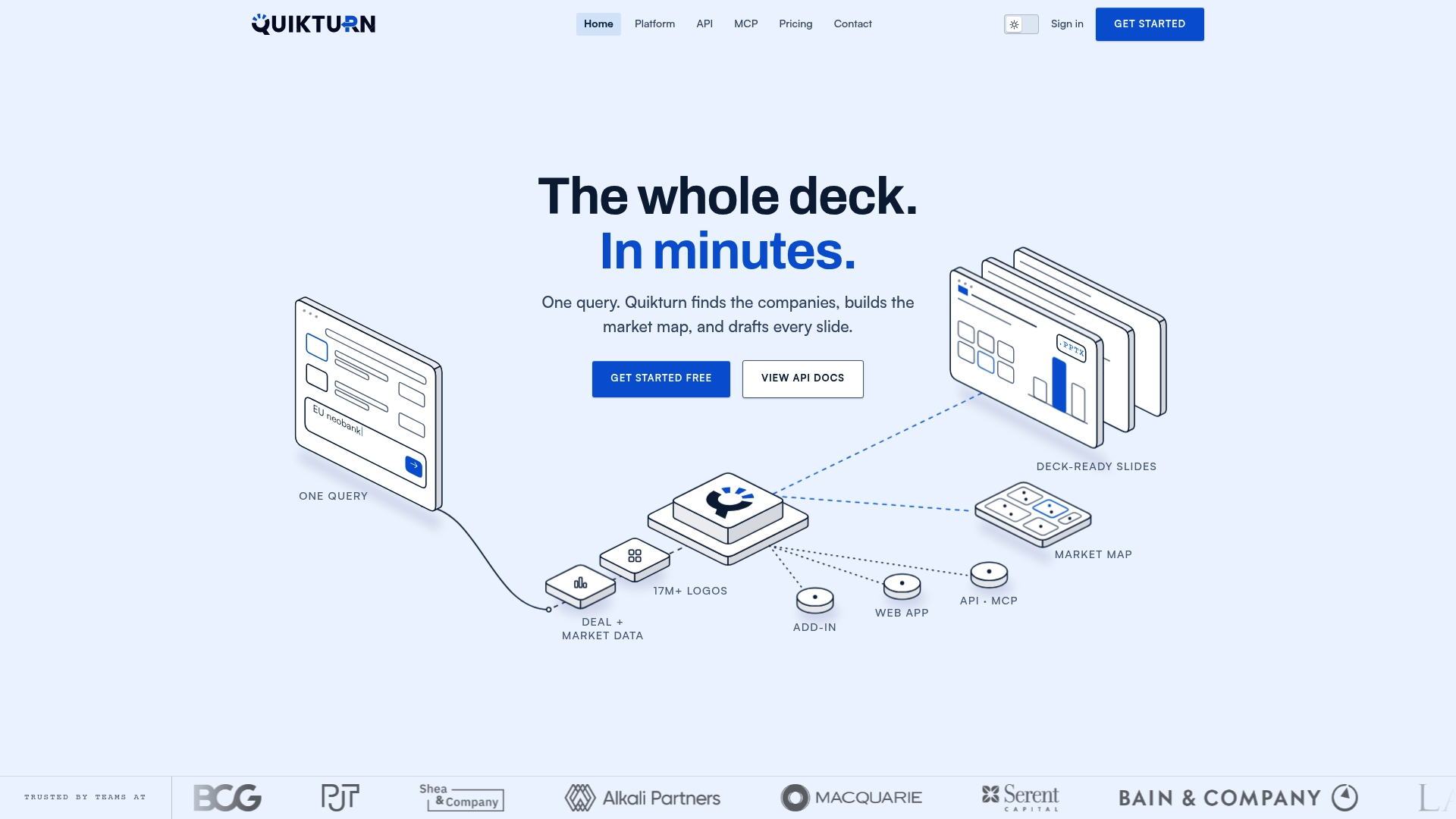
For teams that need to insert logos across many decks or automate the process further, The provider also offers bulk-processing workflows and a pricing page covering plans from a free tier to various paid options. If your team is spending real hours a week on logo insertion and cleanup, it's worth seeing whether that time is better spent elsewhere. Get started with Quikturn to try it on your next deck.
FAQ
How do I import an SVG into my slides?
Click Insert, then Pictures, then This Device, and select your SVG file to add it directly to the current slide. PowerPoint for Microsoft 365 supports this on Windows, Mac, and mobile devices.
How do I convert an SVG to an editable PowerPoint shape?
Select the inserted SVG, go to the Graphics Format tab, and click Convert to Shape, or right-click the image and choose Ungroup twice. If that option is missing, cutting the image with Ctrl+X and pasting it back with Ctrl+V often restores it, a fix reported in Microsoft Q&A discussions.
How do I bring a vector graphic into PowerPoint?
Use the same Insert, then Pictures, then This Device path for any vector file saved as SVG, since PowerPoint treats vector imports and standard image imports through the same menu. For older vector formats like EMF, the same Insert Pictures path also works, and EMF files can be ungrouped directly once inserted.
How do I add an SVG icon to a slide?
Go to Insert, then Icons, to browse Microsoft's built-in library of SVG icons and click one to place it on your slide. Once inserted, you can recolor it with the Graphics Fill tool or convert it to editable shapes the same way you would a custom SVG file.