

Modern desktop PowerPoint, running current Microsoft 365 builds, supports WebP images directly, so your fastest move is to try Insert > Pictures or simply drag the file onto a slide. If PowerPoint rejects the file, your update channel likely hasn't received the feature yet, and converting to PNG first will get you moving again.
TL;DR:
- PowerPoint on the latest Microsoft 365 builds generally supports WebP images, but support depends on your update channel and may not work in older or non-subscription Office versions.
- Drag-and-drop and Insert > Pictures are the most reliable methods to add WebP files, with conversion needed if the insert option rejects the format or the image appears blurry.
- Converting WebP to PNG is recommended when transparency is needed, while JPEG is better when file size reduction outweighs transparency preservation.
- Quality issues like blurriness or transparency loss are often caused by scaling mismatches or copying images directly, which can be fixed by using Insert > Pictures or exporting the original file from inside the PPT file.
- Using dedicated tools or add-ins like Quikturn can prevent WebP compatibility issues altogether by handling assets in native PowerPoint format and maintaining consistent quality.
Table of Contents
- Step-by-step methods to insert a WebP into PowerPoint
- Which PowerPoint builds actually support WebP
- Fixing blurry images and bad exports after inserting WebP
- When to keep WebP and when to convert for a deck
- How an add-in avoids the WebP conversion headache entirely
- Balancing modern formats with client deliverables
- Quikturn: skip the format troubleshooting entirely
- Sources
- FAQ
Step-by-step methods to insert a WebP into PowerPoint
Four ways to get a WebP image onto a slide, from most reliable to most situational:
- Insert > Pictures > This Device: open the Insert tab, choose Pictures, select This Device, and browse to the WebP file. On a supported build, the image appears instantly at its native resolution with no conversion prompt.
- Drag and drop: open File Explorer on Windows or Finder on macOS, then drag the WebP file straight onto the slide canvas. This works on the same builds that support method one and skips the Insert dialog entirely.
- Copy and paste: copying a WebP image from a browser tab often works, but some browsers convert the image to PNG or BMP during the copy operation, so what lands on your slide may not be the original file.
- Insert > Online Pictures: this searches stock image libraries rather than your local files, so it is not a path for inserting your own WebP assets, and WebP results from web search are inconsistent at best.
A couple of things to check once an image is on the slide:
- Right-click the image and check "Size and Position": a native WebP insert usually keeps the file's original pixel dimensions.
- If the image looks suspiciously soft right after pasting, it may have been silently converted. Try Insert > Pictures instead of paste to confirm.
If the Insert dialog grays out or rejects the .webp extension, that's your signal to move to conversion rather than fight the dialog box.
Which PowerPoint builds actually support WebP
Not every copy of PowerPoint handles WebP the same way, and the gap usually comes down to update timing rather than a missing feature.
- Current Microsoft 365 desktop builds on both Windows and macOS generally support WebP insertion, but rollout depends on your update channel, and organizations on deferred or semi-annual enterprise channels may not have the feature yet even with an active subscription.
- PowerPoint for web has more limited import support than the desktop app, so if a WebP insert fails in the browser, switching to desktop PowerPoint is worth trying before you assume the file is bad.
- Older, perpetual-license versions of Office (the non-subscription kind sold as a one-time purchase) are the least likely to support WebP at all.
- When desktop PowerPoint won't take the file, conversion takes seconds: macOS Preview can export WebP to PNG or JPEG through File > Export, Windows Photos or Paint can do the same, and free online converters work in a pinch for a single file.
Organizations managing Office centrally through tools like Microsoft 365 business deployments often control which update channel staff receive, which is exactly why one laptop might open a WebP file while another refuses it.
Pro Tip: Convert to PNG when you need transparency and to JPEG when you don't. PNG keeps the alpha channel intact; JPEG gives you a smaller file but flattens any transparent background to solid white.

Fixing blurry images and bad exports after inserting WebP
Quality problems after inserting a WebP file usually trace back to one of a few causes, and each has a direct fix.
- Blurry on the slide: this is almost always a scaling mismatch, where PowerPoint stretched a small image well past its native resolution. Replace it with a higher-resolution WebP, or right-click and reset the picture size to its original dimensions.
- Blurry after "Save as Picture": PowerPoint sometimes exports a shape or slide to PNG at a lower resolution than the source image. If that happens, try exporting the full slide as an image instead of the single picture, which often preserves more detail.
- Need the original file back: rename the .pptx file to .zip, open it, and look inside the /ppt/media folder. The original embedded image files, WebP included, are usually sitting there at full resolution, untouched by whatever PowerPoint did on export.
- Lost transparency: if a transparent WebP looks like it gained a solid background after pasting, the paste operation likely rasterized it. Re-insert using Insert > Pictures rather than copy and paste, which is more likely to preserve the alpha channel.
If you're on a company laptop and none of this works, check your Office build number and ask IT whether your update channel is scheduled for the WebP rollout before assuming the file itself is broken.
When to keep WebP and when to convert for a deck
WebP earns its place in a slide deck mainly on file size. Google's own compression study found WebP files run 25 to 34% smaller than equivalent JPEGs at similar visual quality, which adds up fast across a deck full of screenshots and logos.

Use WebP when the deck stays internal, when file size matters for emailing or shared drives, or when you need transparent graphics without a bulky PNG. Convert to PNG or JPEG when the deck is heading to a client, especially one you don't control the software on, when the recipient might be on an older non-subscription version of Office, or when the file is going into a long-term archive where format longevity matters more than a few saved kilobytes.
Before sending anything externally:
- Open the file on a second machine or ask a colleague to open it, since a format that renders fine on your laptop can fail on theirs.
- Add alt text to images, which matters for accessibility regardless of file format.
- Embed images rather than linking them, so the deck doesn't break when a file gets moved or renamed.
How an add-in avoids the WebP conversion headache entirely
Manually converting and re-inserting images is the kind of task analysts end up repeating across dozens of slides, and it is exactly the friction an add-in like Quikturn is built to remove. Instead of hunting down a logo, converting its format, and resizing it by hand, the add-in pulls from a verified library and drops assets straight into native PowerPoint format.
- Logos and images come in at consistent DPI, so there's no blurry-after-paste problem to troubleshoot.
- Transparency is preserved automatically, skipping the rasterization issue that plagues copy-paste workflows.
- Export stays in native PowerPoint format, which sidesteps the update-channel compatibility questions that come up with raw WebP files.
Pro Tip: If your team inserts the same company logos repeatedly across decks, a verified logo source saves more time than any single format fix.
Balancing modern formats with client deliverables
Internal decks are the right place to lean into WebP: smaller files move faster through email and shared drives, and nobody outside your team needs to worry about compatibility. Client-facing decks are a different calculation, where a file that fails to open on the client's laptop costs you more credibility than the saved kilobytes are worth.
The practical habit worth building is simple: test any deck with a newer image format on a second machine before it goes out the door, not after a client calls to say a slide looks broken.
— Quikturn Team
Quikturn: skip the format troubleshooting entirely
Chasing down the right image format, converting files, and re-checking resolution eats time that finance teams don't have on a deadline. Quikturn handles this differently: it's a PowerPoint add-in and web platform built on a verified library of over 17 million company logos, exporting directly into native PowerPoint format so there's no WebP compatibility question to troubleshoot in the first place.
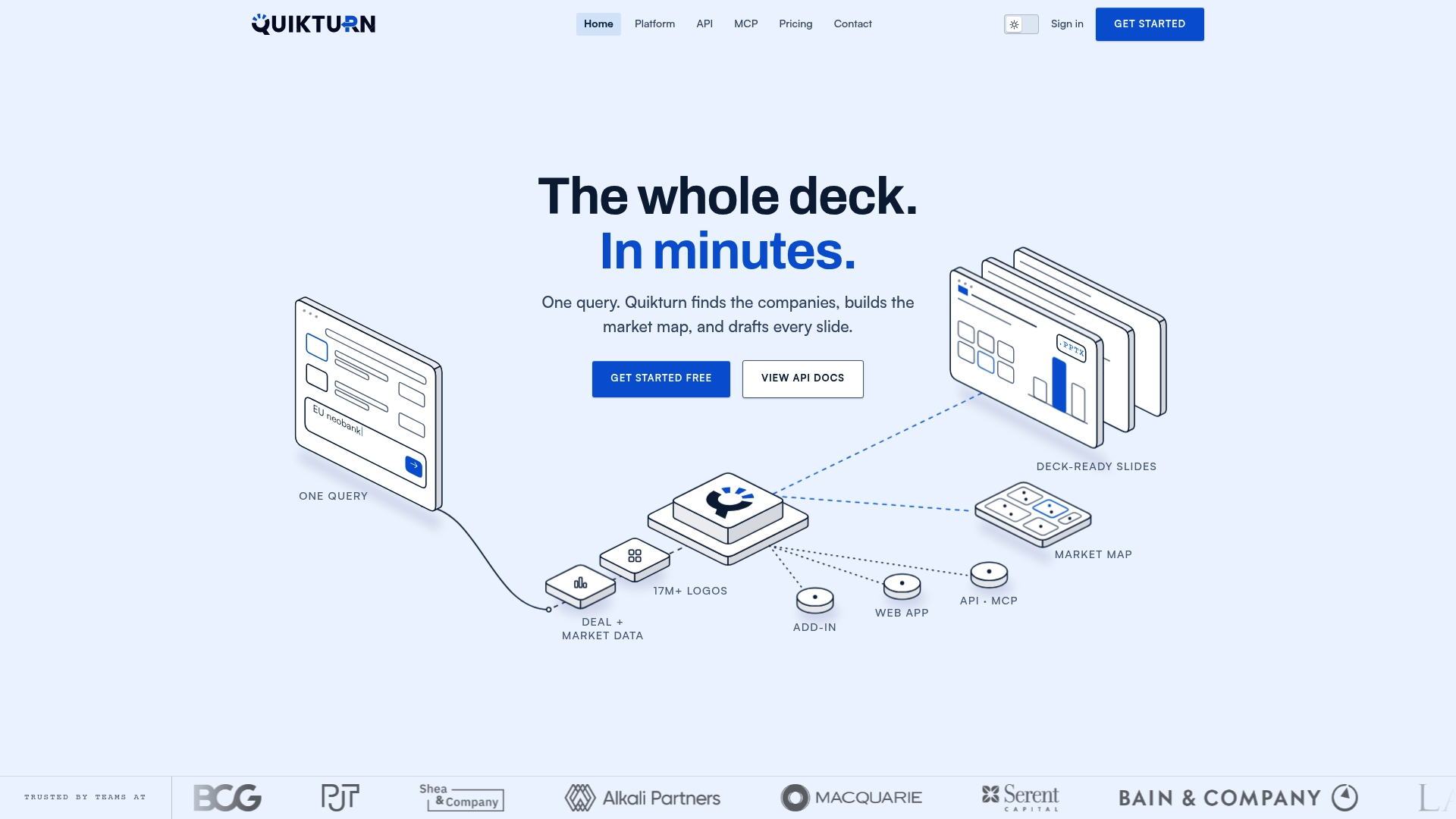
- The PowerPoint add-in inserts logos and assets at consistent quality without manual conversion steps.
- The verified logo database covers company search by name, domain, or ticker, cutting down on manual lookup time.
- Plans range from a free tier up to Platform Pro at $9.99 per month, with enterprise options available for larger teams.
If format friction is slowing down your deck production, visit the get-started page and try the free tier on your next deck.
Sources
- WebP Compression Study | Google for Developers
- Insert a picture in PowerPoint - Microsoft Support
- When can we expect WebP support in Microsoft 365 documents such as PowerPoint? - Microsoft Q&A
FAQ
Is WebP really better than JPEG?
WebP files tend to be smaller than JPEG at similar visual quality, and they support transparency, which JPEG does not. Google's own testing found WebP files run 25 to 34% smaller than comparable JPEGs, though JPEG remains more universally compatible with older software.
Why can't I open a WebP file?
The most common reason is an older image viewer or an outdated version of Office that was released before WebP support existed. Updating your software or converting the file to PNG or JPEG with a built-in tool like macOS Preview or Windows Photos usually solves it.
Can I turn a WebP into a JPEG?
Yes, both macOS Preview and Windows Photos can export a WebP file to JPEG in a few clicks, and free online converters handle single files just as easily. Convert to JPEG when you don't need transparency and want the smallest practical file size for sharing.
What is the WebP image extension and do I need it?
WebP is an image format developed to produce smaller files than JPEG or PNG while supporting both transparency and animation. You don't strictly need it, but it's useful when file size matters, such as for web pages or internal decks shared over email.