

The fastest path to a pitch-ready tombstone is an editable PowerPoint template, or a modular table/grid you build once and reuse. Quikturn offers a purpose-built shortcut for verified logos and automated insertion, while a grid-based master works well if you prefer a manual build. Either way, keep the content factual, since externally distributed tombstones still echo decades-old SEC advertising guidance.
TL;DR:
- Include the transaction name, your firm’s role, deal type, and value and closing date only when disclosed; list lead advisors, coadvisors, and lenders where applicable.
- Externally distributed tombstones should stick to accurate, verifiable deal facts, since SEC guidance limits public announcements and bars promotional claims.
- Set a fixed logo height of 0.35 to 0.5 inches, use equal padding, and build the reusable grid around five or six slots.
- Use a table grid for repeated production, but choose grouped shapes for asymmetric logo counts or custom layouts; name objects in the Selection Pane.
- Quikturn searches more than 17 million logos by company name, ticker, or domain; its Platform Pro plan starts at $9.99 monthly, with a free tier.
Table of Contents
- What is a deal tombstone and when does it belong in a pitchbook?
- Key elements every tombstone template must contain
- How to build a modular tombstone with a PowerPoint table or grid
- How to build a tombstone without tables, using shapes and groups
- Design and logo-grid tips to keep tombstones tidy and brand-safe
- How to manage a tombstone and template library for team consistency
- Modular templates save more time than most teams expect
- Quikturn speeds up tombstone creation without the manual logo hunt
- FAQ
- Sources
What is a deal tombstone and when does it belong in a pitchbook?
A deal tombstone is a compact slide element, usually a logo grid with a short line of deal facts, that announces a completed or pending transaction. It exists to establish credibility, give a quick visual record of past deals, and let a reader scan a firm's experience without reading case studies.
Tombstones typically show up in a few recurring places:
- Executive summary pages, where they back up a pitch for new business.
- Track record or "selected transactions" sections near the back of a deck.
- Teasers and one-pagers sent to prospective buyers or investors.
The format traces back to SEC rules governing tombstone advertisements, specifically Rule 134 and Rule 135, which historically limited public announcements of securities offerings to plain factual content rather than promotional language. That origin is historical context, not legal advice, but it explains why the convention still favors restraint: name, role, size, date, and little else.
Key elements every tombstone template must contain
A usable template is really a short checklist turned into a layout. Miss one field and an analyst has to rebuild the slide from scratch instead of just populating it.
The core fields that belong on nearly every tombstone:
- Deal title or transaction name, stated plainly.
- Your firm's role (sole advisor, co-manager, financial advisor to the seller, and so on).
- Deal type: M&A, IPO, debt issuance, equity raise, restructuring.
- Disclosed value and closing date, only when that information is public.
- Names of lead advisors, co-advisors, and lenders involved.
Logo placement deserves its own rule set. Logos should sit on a shared baseline, scale to a consistent maximum height regardless of their native aspect ratio, and keep equal padding on all sides so a wide logo and a square one read as the same size. Teams that skip this step end up with tombstones where one logo looks twice as large as its neighbor purely because of its source file.
Using a locked grid with fixed logo heights and uniform padding is one of the more reliable ways to keep a multi-logo slide looking intentional rather than assembled under deadline pressure, a practice confirmed by teams that build these slides repeatedly. Optional fields worth adding when space allows include sector tags, a one-line deal description, and a status flag (closed, pending, confidential).

How to build a modular tombstone with a PowerPoint table or grid
A table or invisible grid is the fastest way to guarantee that every tombstone on a slide, and every tombstone across a deck, shares the same proportions. Here is a workable sequence:
- Open Slide Master and insert a table with a fixed number of columns matching your typical logo count, then set uniform row height and cell padding.
- Convert visible borders to "no line" so the grid becomes invisible on the final slide while still constraining object placement.
- Set an explicit logo height limit, something like 0.35 to 0.5 inches tall depending on your slide size, so logos of different native dimensions still line up on the same baseline.
- Use the Selection Pane to name each logo placeholder and metadata text box, then group related elements so you can move a whole row without breaking alignment.
- Apply align and distribute tools to fix any drift once logos of varying widths are dropped in.
- Save the finished layout as a Slide Master entry or a dedicated slide in your firm's template library, including placeholder text for optional disclosures.
Pro Tip: Build the grid once at your most common logo count (five or six), then just delete or hide empty cells for smaller deals instead of rebuilding the table each time.
The Selection Pane in particular earns its keep here: once logos and labels are named rather than left as "Picture 14" and "Picture 15," reordering or swapping a logo takes seconds instead of a hunt through overlapping objects.
How to build a tombstone without tables, using shapes and groups
A table grid is not always the right tool. Bespoke layouts, asymmetric logo counts, or decks with a nonstandard visual style often call for a shape-based build instead.
- Draw a rectangle placeholder for each logo slot, plus a text box for the title and one for metadata, then align them along a guide rather than a table edge.
- Use PowerPoint's smart guides or the align and distribute commands to space the row evenly before dropping in real logos.
- Convert SVG logos to native PowerPoint shapes when you need exact scaling or recoloring, since a converted shape resizes and recolors more predictably than an embedded image.
- Group each row of elements and give the group a clear name in the Selection Pane, something like "Row 1, Logo Group," so future edits do not require reselecting every object.
- Save the finished grouped layout as a reusable element in Slide Master.
Grouping and ungrouping shortcuts, Ctrl+G and Ctrl+Shift+G, make this method faster than it sounds once you're used to them. Reach for the shape-based approach when a deal calls for a one-off layout; reach for the table grid when you're producing tombstones at volume and consistency matters more than customization.
Design and logo-grid tips to keep tombstones tidy and brand-safe
Spacing and sizing decisions matter more on a tombstone than almost anywhere else in a deck, because the eye immediately notices when logos are uneven.
- For three to seven logos in a row, keep each logo within a consistent height band and leave equal horizontal gaps so the row reads as one unit, not a loose collection.
- Switch to monochrome or grayscale versions of logos when a deal partner's brand colors clash with your deck's palette, applying the lightest recoloring needed for contrast rather than a full redesign.
- Establish a clear type hierarchy: the deal title in your largest weight, metadata like date and value one or two sizes down, and advisor credit lines in the smallest legible size.
- Keep any required legal legend or disclaimer text large enough to read at normal zoom, never shrunk purely to save space.
Pro Tip: Lock your type sizes into the Slide Master's placeholder styles so nobody accidentally shrinks a title to make a long deal name fit on one line.
How to manage a tombstone and template library for team consistency
A template is only useful if the next analyst can find it and trust that it's current. Keep a shared folder or Slide Master file with version numbers in the filename and a short readme slide explaining which template fits which deal type.
- Maintain a verified logo repository with a consistent naming convention, so nobody re-downloads a low-resolution logo that's already on file; a verified logo database removes that guesswork entirely.
- Restrict edit access to Slide Master files and route proposed changes through a simple request process instead of ad hoc edits.
- Keep a one-page checklist of required fields so every analyst populates deal title, role, type, and date the same way every time.
Modular templates save more time than most teams expect
The biggest time sink in tombstone production isn't drawing boxes, it's re-aligning logos that were never on a grid to begin with. A locked table or grouped shape layout removes that step entirely, which means the difference between a template built once and a slide rebuilt every time shows up most clearly on a tight deadline before a pitch.
Pairing a solid manual template with a tool like Quikturn for verified logo sourcing tends to close the remaining gap, since even a perfect grid still needs a correctly sized, current logo dropped into it. Try building one template by hand first, then compare how much faster the same slide comes together with automated logo insertion.
— Quikturn Team
Quikturn speeds up tombstone creation without the manual logo hunt
Once your grid or shape layout is built, the remaining bottleneck is almost always sourcing and sizing logos correctly, and that's the piece we built our platform around. We pull from a verified database of over 17 million company logos, so instead of searching the web for a usable file, you search by company name, ticker, or domain and drop a correctly sized logo straight into your template.
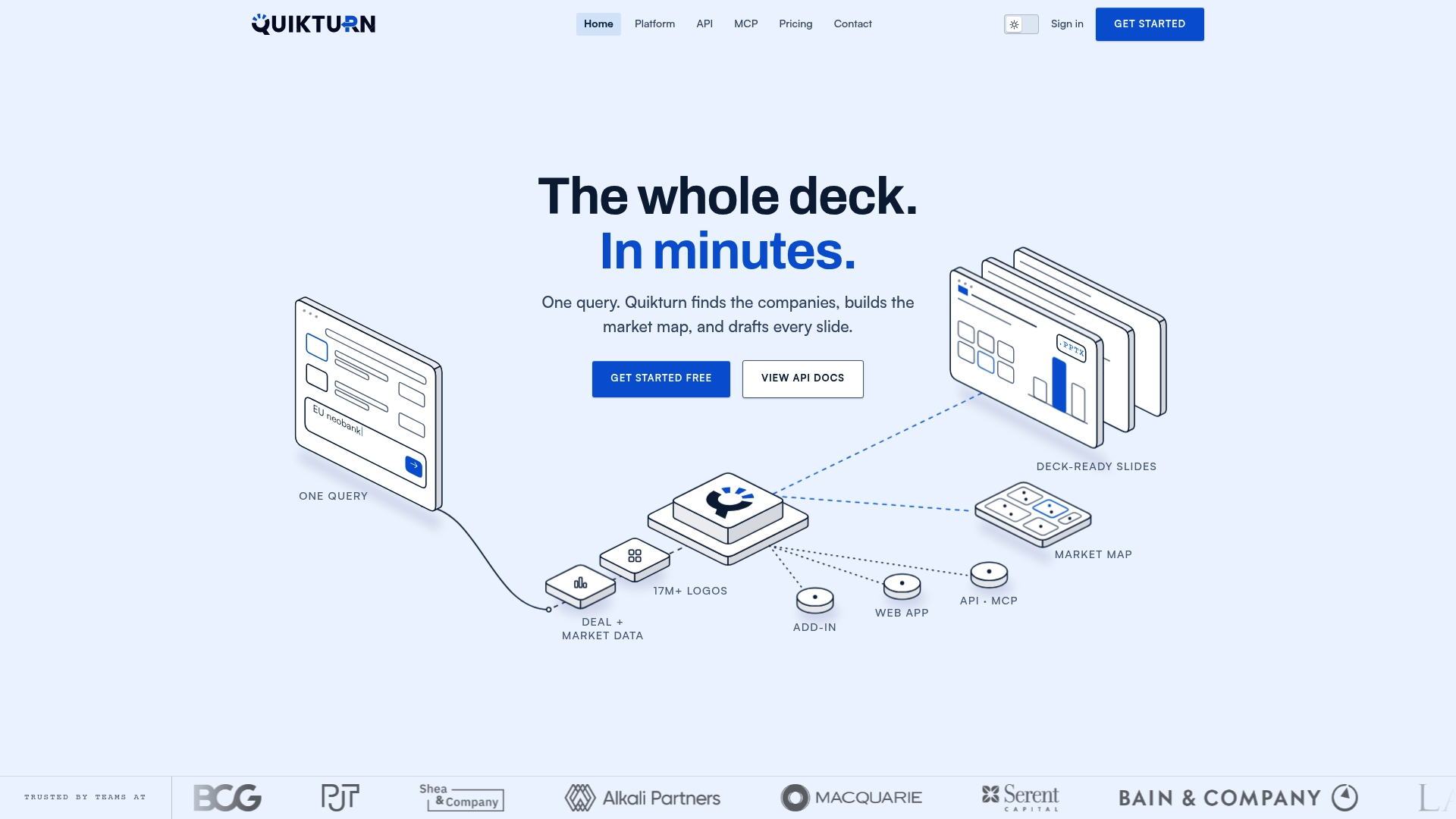
- Insert logos directly into PowerPoint through our add-in, or pull them programmatically through our API for teams building decks at scale.
- Export in SVG, PNG, WebP, or native PowerPoint format, so a logo fits your grid without a manual resize.
- Keep presentation content off our servers, which matters for teams working under confidentiality agreements.
Our Platform Pro plan starts at $9.99 per month, with a free tier available if you want to test the logo search and insertion workflow before committing. Take a look at our platform page to see how the add-in fits into an existing tombstone template.
FAQ
What is a deal tombstone in investment banking?
A deal tombstone is a slide element, typically a row or grid of company logos paired with a short line of deal facts, used to showcase a firm's completed or pending transactions. It appears most often in pitchbook executive summaries and track record sections.
Why are tombstone ads called tombstones?
The name comes from the plain, text-heavy format these announcements historically took in print, resembling a cemetery marker more than an advertisement. That restrained style traces back to SEC Rule 134 and Rule 135, which limited what public securities announcements could say.
What information can legally appear in a tombstone ad?
SEC interpretive guidance on Rule 134 restricts public tombstone ads to specific factual content and explicitly limits items like ratings or performance claims. Internal pitchbook tombstones have more flexibility, but any version shared externally should stick to accurate, verifiable facts.
What's the easiest way to keep logos aligned across multiple tombstone slides?
Building a locked table or invisible grid in PowerPoint's Slide Master, with a fixed logo height and uniform padding, is the most reliable way to keep logos aligned slide to slide. Naming and grouping objects in the Selection Pane also makes later edits faster without breaking that alignment.
How do I quickly find verified company logos for a tombstone?
A dedicated logo search tool that pulls from a verified database saves the time of hunting for clean, correctly sized logo files online. Our free logo finder searches over 17 million company logos by name, ticker, or domain for exactly this purpose.
Sources
These are the source documents cited above, useful if you want to verify a compliance point or follow the exact PowerPoint steps yourself.
- SEC rule releases and guidance (tombstone ads / Rule 134 & 135)
- Use the Selection pane to manage objects in documents | Microsoft Support