

The fastest reliable way to roll out a PowerPoint add-in across an organization is Centralized Deployment through the Microsoft 365 admin center, with PowerShell automation for scripted or repeated rollouts. Both paths require Global Admin or Exchange Admin rights, Exchange Online mailboxes, and Microsoft Entra ID sync for every targeted user. Once deployed, expect 24 to 72 hours for the add-in to appear in users' ribbons, so build that window into any launch plan and start with a small test group.
TL;DR:
- Maintain both manifest formats across mixed Office fleets: the unified version excludes older perpetual installs, Outlook for Mac, and some mobile clients.
- Changes to requested permission scopes trigger new admin consent, so document each permission and secure approval before affected users lose access.
- After assignment, use Get-OrganizationAddIn to verify scope and status; investigate group membership, mailbox sync, client support, and blocked hosting domains before redeploying.
- Track add-ins in a tenant inventory because Centralized Deployment supports up to 200 across Excel, Outlook, PowerPoint, and Word; usage analytics require provider tools.
Table of Contents
- Prerequisites: roles, licenses, Entra ID, and client support
- How to deploy: admin center, PowerShell, SharePoint, and Marketplace
- Manifest and identity: XML vs unified manifest, SSO, and hosting
- Phased rollout, test groups, and user communication
- Verification, common blockers, and the propagation window
- Versioning and updating deployed add-ins
- User access and permission management post-deployment
- Security best practices specific to PowerPoint add-in deployment
- Monitoring deployment status and usage analytics
- Compatibility considerations across different PowerPoint and Office versions
- Handling offline scenarios and add-in availability without internet connection
- What enterprise PowerPoint add-in deployment looks like for finance teams
- Get started with Quikturn's PowerPoint add-in
- FAQ
- Sources
- Key Microsoft documentation and Quikturn resources
Prerequisites: roles, licenses, Entra ID, and client support
Before touching the admin center, confirm your tenant and target users actually meet the baseline requirements. Centralized Deployment fails silently for a lot of admins simply because one of these boxes is unchecked.
- You need Global Admin or Exchange Admin privileges to push organization-wide add-ins.
- Every targeted user needs an Exchange Online mailbox; on-premises Exchange mailboxes are not supported for this method.
- Users must be synchronized to Microsoft Entra ID, which rules out purely on-premises identity setups without hybrid sync.
- Some Microsoft 365 plans lack admin center access to Integrated Apps entirely, so verify your subscription tier includes it before planning a rollout date.
- Confirm which Office clients your workforce actually runs: the unified manifest is not supported everywhere, and older perpetual Office installs or Outlook on Mac may need the legacy XML manifest instead.
- Check that any externally hosted manifest assets (icons, task pane, commands) are served over HTTPS and reachable from your network, since firewalls or proxy rules sometimes block the domains referenced in the manifest.
Skipping these checks is the single most common reason a deployment "completes" in the admin center but never reaches a single user.
How to deploy: admin center, PowerShell, SharePoint, and Marketplace
Four paths exist, and picking the right one depends on your tenant setup and how much automation you want.
- Centralized Deployment (Integrated apps): sign in to the Microsoft 365 admin center, go to Settings then Integrated apps, upload the manifest file or URL, choose the users or groups in scope, and finish the wizard to push the add-in tenant-wide or to a subset of users.
- PowerShell automation: install the Centralized Deployment module, run
Connect-OrganizationAddInService, then useNew-OrganizationAddInto upload and assign the manifest,Get-OrganizationAddInto confirm assignment status, andSet-OrganizationAddInto update scope or version later. - SharePoint app catalog: reserved for on-premises or restricted cloud scenarios where the admin center option isn't available; it works differently from Centralized Deployment and generally suits organizations that can't use the integrated apps portal at all.
- Microsoft Marketplace (AppSource): suited to broad, public distribution rather than controlled internal rollout; updates are managed through the listing rather than tenant-level assignment, which trades control for reach.
PowerShell is worth the setup time if you manage multiple add-ins or need repeatable deployment scripts for new tenants. It also makes verification painless: you can script a health check right after assignment instead of clicking through the admin center to confirm it worked.
Pro Tip: Wrap your PowerShell deployment in a script that also checks the manifest's hosting URL returns a 200 response over HTTPS, since a broken host is the most common post-deployment failure.
Manifest and identity: XML vs unified manifest, SSO, and hosting
Office add-ins ship with one of two manifest types: the add-in-only XML manifest, or the newer unified manifest for Microsoft 365 in JSON. The XML manifest works across the widest range of Office clients. The unified manifest integrates more tightly with Microsoft Teams and the Integrated apps portal but has narrower client support.
- Manifest fields to confirm: a stable GUID as the add-in ID, correctly sized icons, the start page URL, requested permission level, and every domain your add-in calls listed in AppDomains or validDomains.
- webApplicationInfo: if your add-in uses SSO, register it with the Microsoft identity platform and set
webApplicationInfo.idto match the app registration's GUID; the resource value must match the registered application URI, or token requests fail. - Admin consent: changing requested scopes after deployment triggers a new consent prompt, and users stay blocked until an admin grants it.
- Hosting checks: serve every manifest asset over HTTPS, set sensible cache-control headers on icons and task pane files, and confirm image URIs resolve without redirects.
Unified manifest support varies by client. Excel, PowerPoint, and Word on current Microsoft 365 builds support it, but older perpetual Office installs, Outlook on Mac, and some mobile clients do not. If your organization runs a mix of client versions, maintain both manifest formats and route users to the one their client supports.
Phased rollout, test groups, and user communication
Rolling out to everyone on day one is how small manifest bugs become helpdesk tickets. A phased approach catches problems while the blast radius is still small.
- Deploy first to a small group that includes at least one IT admin and one business stakeholder, so both functional and consent issues surface early.
- Expand to a broader pilot group once the first wave reports no blocking issues, watching for permission prompts or missing ribbon buttons.
- Push to the full organization only after the pilot group has used the add-in long enough to surface edge cases, not just confirmed it loads.
Relying on the admin center's Test Deployment toggle alone isn't the same as testing with a real group of users in their normal workflow, since real usage surfaces permission and network issues that a toggle won't catch. Send a short announcement to the pilot group explaining what the add-in does, where to find documentation, and which support channel to use for issues.
Pro Tip: Schedule your full rollout announcement for 72 hours after deployment, not immediately, so you're not fielding "I don't see it yet" tickets during the normal propagation window.
Verification, common blockers, and the propagation window
After deployment, allow 24 to 72 hours before assuming something is broken. During that window, monitor for support tickets but avoid re-pushing the manifest, which can reset the propagation timer for affected users.
- Confirm the user is actually in the assigned group or license scope, not just a member of the tenant.
- Check that the user's mailbox is on Exchange Online and synced to Entra ID; a missed sync silently excludes them.
- Verify the client version supports the manifest type you deployed, especially for unified manifest rollouts.
- Run
Get-OrganizationAddInto inspect current assignments and confirm the add-in shows the expected scope. - Rule out firewall or proxy rules blocking the manifest's hosting domain, which prevents the add-in from loading even when assignment looks correct.
- If you changed requested permission scopes in an update, check whether admin consent is pending, since unconsented scope changes block the add-in for affected users until approved.
Versioning and updating deployed add-ins
Updating a deployed add-in usually means updating the manifest or the hosted files it points to, not re-running the entire deployment wizard. If your manifest references a stable URL for the task pane and commands, pushing new code to that URL updates the experience for every user automatically, since Office loads the latest version from the hosted source each time.
Version number changes inside the manifest matter most when you're changing the manifest's own structure: new permissions, new UI entries, or a switch between XML and unified manifest format. In those cases, use Set-OrganizationAddIn to push the updated manifest through Centralized Deployment rather than relying on hosted-file changes alone.
Keep a changelog tied to manifest versions so you can tell support staff exactly what changed and when. If an update introduces new requested scopes, expect a fresh admin consent prompt, and warn your pilot group that a short interruption is normal.
For add-ins distributed through the SharePoint app catalog, updates follow the catalog's own versioning rules rather than Centralized Deployment's, so admins managing both paths need to track version state separately for each distribution channel.

User access and permission management post-deployment
Once an add-in is live, access control doesn't stop at the initial assignment. Group membership changes constantly: people join teams, change roles, or leave the organization, and your add-in assignment should track those changes rather than freezing at deployment time.
Assign add-ins to Microsoft 365 groups or security groups tied to your existing access model instead of static user lists, so adding someone to the right group automatically grants add-in access without a separate admin action. Review group membership periodically, especially for add-ins that touch sensitive data sources, to confirm access still matches who needs it.
When an add-in requests elevated permissions such as document read/write access or external API calls, document what each permission level grants so your help desk can answer user questions without escalating. If you later tighten or expand requested permissions in a manifest update, remember that existing users may need to re-consent before continuing to use the add-in.
Security best practices specific to PowerPoint add-in deployment
Treat the manifest's domain list as a security boundary, not just a technical requirement. Every domain listed in AppDomains or validDomains should be one you control or trust explicitly, since Office grants those domains the ability to interact with the task pane.
Host manifest assets and task pane content exclusively over HTTPS; Office blocks or warns on insecure HTTP sources, and allowing mixed content weakens the trust boundary between your add-in and the host application. For add-ins using SSO, confirm the webApplicationInfo resource and application ID match your actual app registration exactly, since a mismatch either breaks authentication or, worse, misdirects token requests.
Limit requested Graph or API permissions to the minimum your add-in needs. Broad permission requests slow down admin approval and increase what's exposed if the add-in's hosted code is ever compromised. Review requested scopes any time you update the manifest, and treat a scope change as a security review event, not just a version bump.
Keep an inventory of every add-in deployed tenant-wide, since Centralized Deployment supports up to 200 add-ins per tenant across Excel, Outlook, PowerPoint, and Word, and an untracked inventory makes it easy to miss a stale or unpatched add-in.

Monitoring deployment status and usage analytics
The admin center's Integrated apps page shows deployment status per add-in, including how many assigned users have the add-in available versus how many haven't picked it up yet. Check this several days after deployment rather than immediately, since it needs the propagation window to reflect accurately.
PowerShell gives you a scriptable alternative: Get-OrganizationAddIn returns the current assignment and status for a given add-in, which is useful if you're managing several deployments and want a single script to check all of them rather than clicking through the portal for each.
Usage analytics beyond assignment status typically comes from the add-in provider itself rather than the admin center, since Microsoft's tooling tells you whether the add-in is deployed and available, not how often people open it. If usage data matters to your rollout decisions, confirm with your add-in provider what analytics they expose and whether that requires separate configuration or consent.
Compatibility considerations across different PowerPoint and Office versions
Not every PowerPoint client behaves the same way with a deployed add-in, and version mismatches are a frequent source of "it works for me" tickets. The unified manifest works on current Microsoft 365 builds of PowerPoint, but older perpetual Office installs and some mobile clients don't support it, which means an add-in that loads fine for one team can fail entirely for another running an older build.
If your organization runs a mix of Microsoft 365 subscription clients and perpetual Office licenses such as Office 2019 or 2021, plan to maintain the add-in-only XML manifest alongside the unified manifest, and use your deployment runbook to document which group receives which version. Before a tenant-wide rollout, inventory the PowerPoint versions in active use, since a quick survey of your help desk tickets or device management console usually reveals more variation than expected.
Mobile and web versions of PowerPoint have their own support boundaries for add-in commands and task panes, so test on at least one mobile and one web instance if your user base includes people who primarily work outside the desktop client.
Handling offline scenarios and add-in availability without internet connection
PowerPoint add-ins depend on a live connection to load their hosted task pane, commands, and any external data the add-in queries, which means a fully offline session generally can't load an add-in's interface for the first time. Once loaded earlier in a session, some cached elements may continue to function briefly, but this isn't guaranteed and shouldn't be the basis of a workflow.
For teams that travel or work in low-connectivity environments, the practical fix is setting expectations rather than engineering around the limitation: load the add-in and complete any add-in-dependent work while connected, then continue with the rest of the presentation offline using PowerPoint's native features. If your organization depends heavily on an add-in for core workflows, factor connectivity into your rollout communication so users aren't surprised when a conference room with weak Wi-Fi causes the task pane to fail to load.
Document this limitation in your internal support materials, since "the add-in won't open" tickets from offline or low-bandwidth situations are easy to misdiagnose as a deployment failure rather than a connectivity issue.
What enterprise PowerPoint add-in deployment looks like for finance teams
Rolling out a finance-focused add-in follows the same manifest, SSO, and hosting checklist as any other Office add-in: a valid manifest with correct domain entries, HTTPS-hosted assets, and an app registration if single sign-on is involved, as outlined in What Does the EU AI Act Require From Financial Institutions. We built our own PowerPoint add-in integration around these same requirements, since any add-in deployed through Centralized Deployment has to meet them regardless of what data it queries.
For admins evaluating an add-in like ours that connects to a verified database of over 17 million company logos and market data, the practical checklist is the same one covered above: confirm a test group before tenant-wide rollout, complete app registration if SSO is required, and allowlist the hosting domain on your network. We offer our add-in alongside a web app and API, so IT teams can choose the integration path that fits their existing tenant setup.
— Quikturn Team
Get started with Quikturn's PowerPoint add-in
Once your deployment prerequisites are in place, getting our add-in into analysts' hands doesn't require a separate rollout process. We offer the same logo search, company lookup, and market mapping tools through a web app, PowerPoint add-in, and API, so your team can pick whichever fits the existing workflow without duplicating setup work.
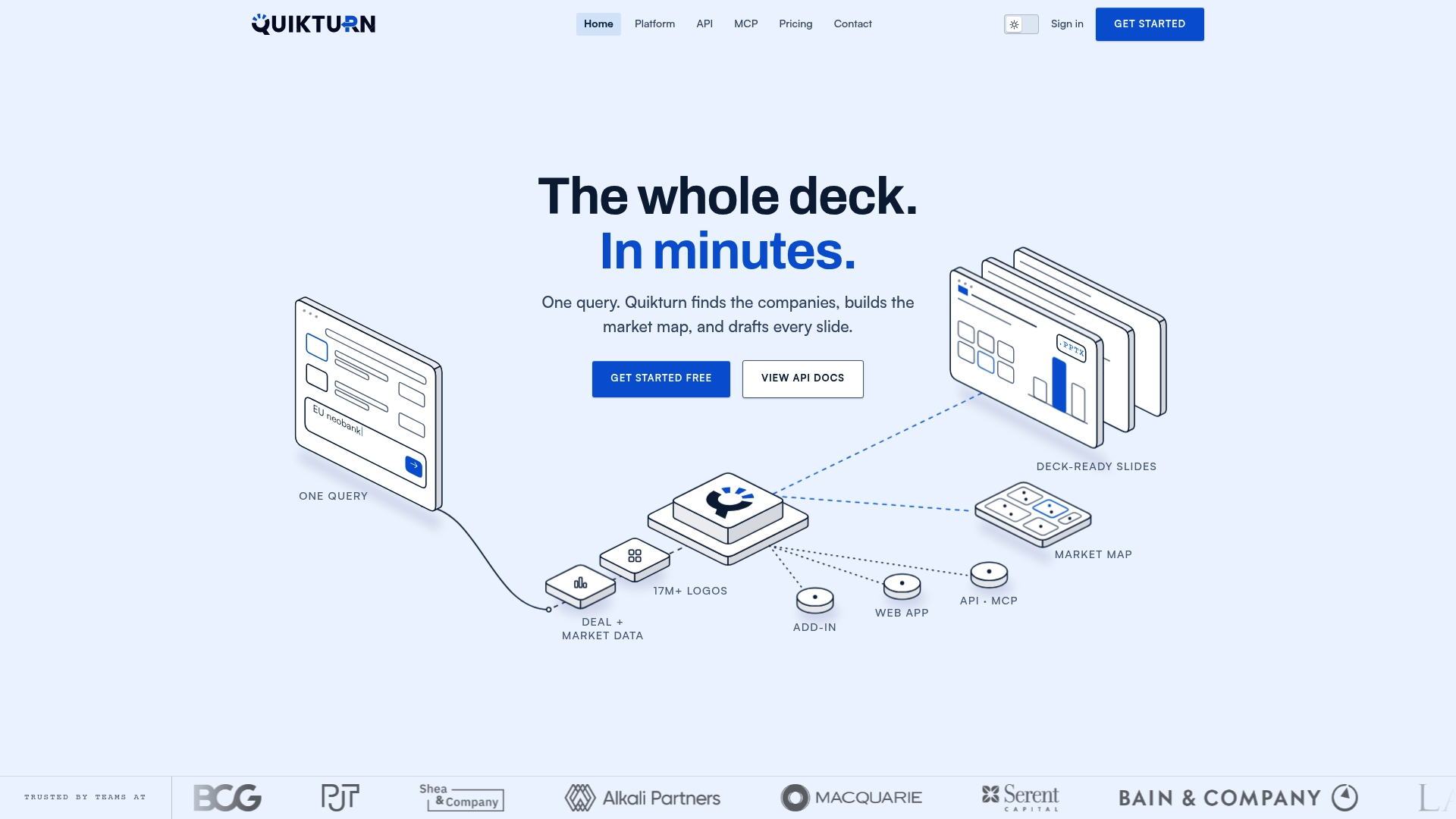
- Our web app and PowerPoint add-in both draw from the same verified database, so results stay consistent across tools.
- Our API and developer options let technical teams build logo search and company data directly into internal tools.
- Our pricing page lists plan details for Platform Pro at $9.99 per month and API plans starting at Launch for teams that need higher usage.
Start with our free tier to test the add-in in your own tenant before committing to a paid plan, and loop in your Microsoft 365 admin early so the Centralized Deployment steps above are already handled by the time your team wants to use it.
FAQ
What permissions do I need to deploy a PowerPoint add-in?
You need Global Admin or Exchange Admin rights in your Microsoft 365 tenant to use Centralized Deployment. Targeted users also need Exchange Online mailboxes and Microsoft Entra ID sync, since on-premises mailboxes aren't supported for this method.
How long does it take for a deployed add-in to appear?
Plan for 24 to 72 hours after deployment before the add-in shows up in users' ribbons. If it hasn't appeared after that window, check group assignment, license scope, and client version before assuming something failed.
What's the difference between the XML manifest and the unified manifest?
The add-in-only XML manifest works across a wider range of Office clients, while the unified manifest for Microsoft 365 integrates more closely with newer Microsoft 365 features but isn't supported on older perpetual Office installs or some mobile clients. Many organizations maintain both formats to cover their full range of client versions.
Can I deploy a PowerPoint add-in without the admin center?
Yes. PowerShell cmdlets such as New-OrganizationAddIn let you script deployment and updates, and SharePoint app catalogs remain an option for on-premises or restricted cloud environments where the admin center path isn't available.
Why isn't my deployed add-in showing up for all assigned users?
The most common causes are an incomplete Exchange Online or Entra ID sync, a client version that doesn't support the manifest type deployed, or a firewall blocking the manifest's hosting domain. Running Get-OrganizationAddIn confirms the current assignment status, and checking group membership rules out the simplest misconfiguration.
Sources
- Centralized deployment FAQ | Microsoft Learn
- Centralized deployment of add-ins | Microsoft Learn
- Use the Centralized Deployment PowerShell cmdlets to manage add-ins | Microsoft Learn
- Add-in manifests | Microsoft Learn
- Office Add-ins with the unified app manifest for Microsoft 365 | Microsoft Learn
Key Microsoft documentation and Quikturn resources
- Centralized deployment FAQ | Microsoft Learn
- Centralized deployment of add-ins | Microsoft Learn
- Use the Centralized Deployment PowerShell cmdlets to manage add-ins | Microsoft Learn
- Add-in manifests | Microsoft Learn
- Office Add-ins with the unified app manifest for Microsoft 365 | Microsoft Learn
- Manage deployment of add-ins | Microsoft Learn
- Authenticate with the Microsoft identity platform for SSO | Microsoft Learn
- Testing and troubleshooting Office Add-ins | Microsoft Learn
- Platform | Quikturn
- Get Started | Quikturn
- Pricing | Quikturn