

Use a Slide Master-based .potx template that contains approved logos, theme colors checked against WCAG standards, approved fonts, and a set of representative sample slides following brand photography guidelines. Validate every color pairing against the WCAG contrast thresholds, then distribute the file through a Brand Kit or Organization Asset Library and turn on strict brand adherence for Copilot so AI-generated slides inherit your layouts instead of improvising.
TL;DR:
- Build a .potx template with 10 to 15 layouts, placeholders, approved logos and fonts, exact color codes, and sample slides that show the intended output.
- WCAG 1.4.3 requires a 4.5:1 contrast ratio for normal text and 3:1 for large text; even 4.499:1 fails, while logotypes are exempt.
- Store the canonical template and assets in one shared library; appoint an owner to approve versioned updates and archive older copies.
- Strict brand adherence keeps Copilot within approved layouts, but PowerPoint checks structure, not pixels, so reviewers must catch recolored logos and unapproved fonts.
Table of Contents
- What goes into a brand-compliant PowerPoint template
- How to set up Slide Master and save a reusable theme
- Logo usage rules: formats, placement, and avoiding mistakes
- Color and accessibility: meeting WCAG contrast standards
- Typography and data visualization rules for financial slides
- Distribution and enforcement: Brand Kit, OAL, and AI steering
- Automated compliance monitoring features in PowerPoint presentations
- Version control and update management for brand assets within PPT files
- Integrating AI tools like Quikturn into brand-compliant slide generation
- Training resources and user permissions to keep teams aligned
- Reporting and auditing compliance across teams and presentations
- Why a template-first approach works for finance teams
- Quikturn: speed up brand-compliant deck creation
- FAQ
- Sources
What goes into a brand-compliant PowerPoint template
A template only enforces compliance if it contains the right pieces before anyone opens it. Skipping any one of these items forces colleagues to guess, and guessing is where off-brand decks come from.
- A set of representative sample slides covering title, agenda, content, data visualization, timeline, quote, and summary layouts so intent is obvious at a glance.
- Approved logo files in SVG for scalable placements and PNG or WebP for raster contexts, with clear-space and minimum-size rules documented next to them.
- A color palette listing HEX and RGB values plus print codes, with primary, secondary, and accent roles clearly labeled.
- Typography rules covering heading and body fonts, point sizes, and a fallback font for machines that lack the brand typeface.
- Placeholder-based layouts instead of floating text boxes, so content dropped into a slide snaps to the approved structure.
- Final files distributed as a .potx template plus example .pptx decks and exported logo assets for other tools.
According to Microsoft's guidance on building brand guidelines for presentations, a presentation style guide should bundle logo usage, a color palette with technical codes, typography, and imagery style together with links to the downloadable source files, rather than scattering them across separate documents.
How to set up Slide Master and save a reusable theme
Slide Master is where enforcement actually happens: once a logo, font, or color lives there, every new slide inherits it automatically. Microsoft's instructions for customizing a slide master walk through the core mechanics.
- Open the Slide Master view and edit the master slide first, then adjust individual layouts; add your logo to the master or to specific layouts where it belongs.
- Enter your theme colors by HEX or RGB value, set the heading and body fonts, and apply any approved effects before building out layouts.
- Build 10 to 15 distinct layouts covering the common slide types your teams actually use, so nobody has to improvise a structure.
- Replace floating text boxes with placeholders for every content type, and keep decorative elements clear of placeholder zones.
- Save the file as a .potx template and store it in a single, versioned location rather than emailing copies around.
Pro Tip: Build your sample slides in the exact style you want reproduced; AI features reference them directly when generating new content, and thin sample sets lead to generic output.
Logo usage rules: formats, placement, and avoiding mistakes
Logo errors are the fastest way to make a deck look unofficial, and most come from a handful of repeat mistakes.
- Keep SVG as the default for anything that gets resized, and reserve PNG or WebP for contexts that require raster images; add alt text to every exported logo image.
- Set a documented minimum display size and clear-space buffer, and default to a corner or footer placement unless a layout calls for a title-slide lockup.
- Never stretch or recolor the logo, and never place it over a busy photo or pattern without a solid background behind it.
- Keep a dedicated logo wall slide ready for partner or portfolio logos so nobody improvises one under deadline pressure; our logo wall templates built in Slide Master cover common layouts for this.
- Store the canonical logo files in your Organization Asset Library or a shared folder, and reference that single source from every template rather than copying files locally.
A short tutorial on inserting and sizing logos correctly in finance decks covers the placement details that trip up most new template builders, and a step-by-step logo grid approach is worth reviewing before you build a multi-logo slide from scratch.
Color and accessibility: meeting WCAG contrast standards
Brand colors that look sharp on a monitor can still fail basic legibility tests, and that matters for any deck shared outside your immediate team.
WCAG 1.4.3 sets a minimum contrast ratio of 4.5:1 for normal text and 3:1 for large-scale text, and logotypes are exempt from the rule even though images of logos still need alt text. That threshold is strict: a measured ratio of 4.499:1 fails, so use a contrast tool that reports exact values instead of rounding.
- Document every approved text and background pairing by its exact HEX values in the style guide, not just by color name.
- Avoid combining bright blue and red, and be cautious with red and green together, since both pairings cause common readability problems in PowerPoint.
- Add texture, icons, or labels alongside color coding wherever color blindness could obscure meaning.
- Before release, re-check every slide that uses a non-theme color combination, since one-off colors are where contrast failures usually hide.
Typography and data visualization rules for financial slides
Dense financial slides need stricter typography rules than a typical marketing deck, because small misreads in a table or chart carry real consequences.
- Set H1, H2, and body sizes and weights directly in Slide Master so every layout inherits the same hierarchy; use bold for emphasis and avoid decorative fonts in body text.
- Map your chart color palette to brand theme colors and standardize axis labels, legends, and gridlines across every chart template in the deck.
- Compress images and export charts as WebP where the tool supports it, add alt text, and reserve high-resolution originals for print or client-facing exports; our guidance on keeping logos and charts sharp covers the tradeoffs.
Pro Tip: Build one standardized chart template slide into your master deck so every analyst starts from the same axis formatting instead of rebuilding it chart by chart.
Distribution and enforcement: Brand Kit, OAL, and AI steering
A template that lives on one laptop doesn't enforce anything. Microsoft's Brand Kit and strict brand adherence controls move enforcement from policing finished decks to constraining what Copilot can generate in the first place.
- Turn on strict brand adherence for regulated or customer-facing decks, since it stops Copilot from adding or removing placeholders and keeps output inside approved layouts.
- Use slide-note instructions to give Copilot per-slide direction, which works alongside the Brand Kit rather than replacing it.
- Store the canonical template and its assets in the Organization Asset Library or a shared SharePoint location so every team pulls from one source instead of a saved local copy.
- Assign a template owner, set a review cadence, and version every update so older decks can be traced back to the template revision they were built from.
Automated compliance monitoring features in PowerPoint presentations
PowerPoint itself does not run a background compliance scanner the way some dedicated brand-management platforms do, but several built-in behaviors function as a first line of defense. When Copilot's strict brand adherence setting is active, it checks generated or modified slides against the sample layouts and Brand Kit assets before applying changes, which catches a meaningful share of drift before a slide ever reaches a reviewer.
Designer, PowerPoint's layout-suggestion feature, also acts as an informal check: it reads slide content and proposes a layout from the available template options, so using Designer consistently nudges authors back toward approved structures rather than away from them. That said, Designer has real limitations worth knowing before relying on it: it does not offer suggestions for slides built around tables or charts, and it may not work with templates that contain animations or OLE objects on the slide master.
The practical takeaway is that automated monitoring in PowerPoint is layout-level, not pixel-level. It stops a slide from drifting structurally, but it won't catch someone who manually recolors a logo or swaps in an off-brand font inside a text box. That gap is exactly why a documented review step, even a quick one, still belongs in your process alongside the built-in tools.
Version control and update management for brand assets within PPT files
Brand assets change: a logo gets refreshed, a color shifts a shade, a typeface license lapses. The template file needs a clear update path or outdated versions keep circulating long after the refresh.
Store the master .potx file in a single, access-controlled location, whether that's an Organization Asset Library or a shared SharePoint site, and treat local copies as temporary working files rather than sources of truth. Each time the template changes, save a new version with a visible version number in the file name or properties, and keep a short changelog noting what moved: a new logo file, an updated HEX value, a swapped font. That changelog is what lets someone trace a stray old logo on a client deck back to the exact template revision it came from.
Set a review cadence, quarterly works for most teams, rather than updating reactively whenever someone notices a problem. A named template owner should sign off on every version before it replaces the previous one in the shared location, and old versions should be archived rather than deleted, since a compliance question about a past presentation may require checking which template was current at the time.
Integrating AI tools like Quikturn into brand-compliant slide generation
AI-assisted slide generation introduces a new compliance question: does the generated content actually use your approved logos, colors, and layouts, or does it default to generic placeholders? For finance teams producing comparable decks repeatedly, that question comes up constantly.
We built our platform around a verified database of company logos and market intelligence so that logo insertion during deck creation pulls from a checked source rather than a quick web search that might return an outdated mark or the wrong file format. When a query returns a company's logo through an integrated PowerPoint add-in, web app, or API, that logo drops directly into the slide at the correct format, which removes a common failure point where someone grabs a low-resolution image from a search engine under deadline pressure.
Pairing a tool like this with the Slide Master and Brand Kit setup described earlier closes the loop: the template controls layout and typography, strict brand adherence controls what Copilot can alter, and a verified logo source controls what gets inserted when a deck references an outside company. None of these pieces replace the others. They cover different parts of the same compliance problem.
Training resources and user permissions to keep teams aligned
A template is only as reliable as the people using it, so permissions and onboarding matter as much as the file itself.
Set editing permissions on the master template so only designated template owners can modify Slide Master layouts, theme colors, or approved fonts, while everyone else works from locked layouts and placeholders. Most organizations manage this through the same shared library, Organization Asset Library or SharePoint, that stores the template file, restricting write access to a small group and leaving read and insert access open to the wider team.
New hires and occasional presentation builders benefit from a short walkthrough covering where the template lives, how to insert a new slide from an approved layout instead of duplicating and editing an old one, and where to find the logo and color reference sheet. A one-page quick-reference card, linked from wherever your team stores onboarding materials, answers most repeat questions without requiring a live training session every time. Teams that skip this step tend to see the same mistakes resurface: a resized logo, a text box dropped outside a placeholder, a non-theme color picked from the custom color wheel because nobody knew the HEX value.
Reporting and auditing compliance across teams and presentations
Tracking brand compliance across dozens or hundreds of decks requires more than a spot check before a client meeting. A workable audit process starts with the template's version history: knowing which .potx revision a deck was built from immediately narrows down what could be out of date.
From there, a periodic sample review, pulling a handful of recent decks from different teams each quarter, catches drift that automated layout checks miss, like a stretched logo or a manually recolored chart. Recording findings against the same checklist each time (logo usage, color pairings, font consistency, placeholder use) turns a one-off review into a comparable trend over time, which is useful when deciding whether the template itself needs revision or whether a specific team needs a refresher.
For regulated or client-facing work, keeping a record of which decks used strict brand adherence in Copilot, and which template version was active at the time, gives a defensible trail if a compliance question comes up later. None of this requires specialized audit software: a shared log alongside the template library is enough for most teams, as long as someone owns keeping it current.

Why a template-first approach works for finance teams
Finance teams rebuild similar decks constantly: pitch books, market updates, client reviews. A locked-down template removes the repetitive judgment calls, correct logo file, right shade of blue, approved chart style, so analysts spend their time on the content instead of relitigating formatting choices.
AI features speed that work further, but only inside guardrails. A template paired with clear policy lets AI generation scale without scaling the risk of off-brand output, which matters once dozens of people are generating slides independently rather than one designer checking every file by hand.
— Quikturn Team
Quikturn: speed up brand-compliant deck creation
Once your template and governance rules are set, the remaining bottleneck is usually manual research: finding the right logo, checking a company's exact name and ticker, rebuilding the same market map for the third time this quarter. We built Quikturn to remove that step for finance teams.
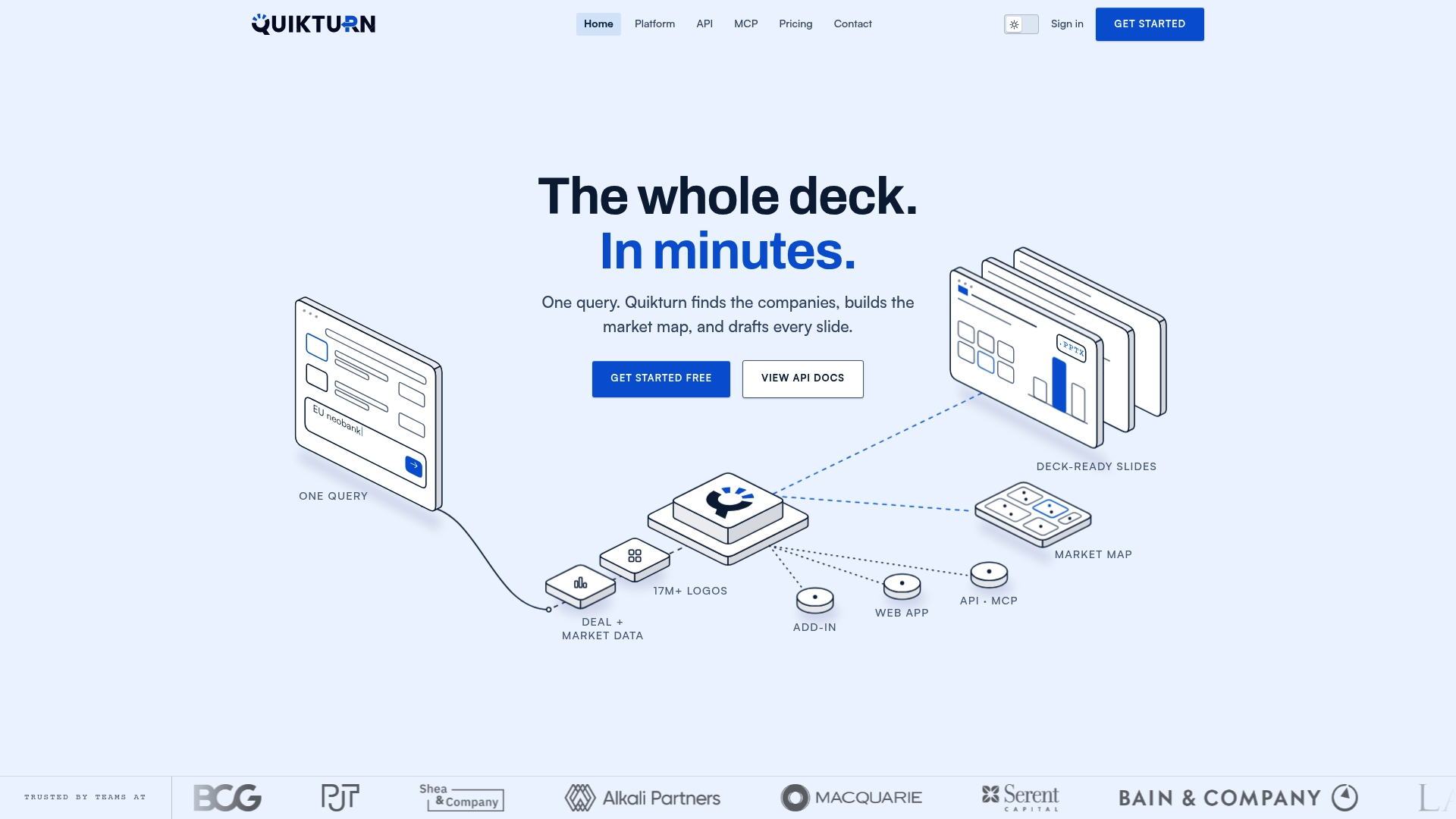
- Search a verified database of over 17 million company logos by name, domain, ticker, or LinkedIn URL and drop the correct file straight into your template.
- Work from the web app, the PowerPoint add-in, or the API, depending on whether you're building a deck by hand or generating one programmatically.
- Keep enterprise-grade security in place, with no storage of presentation content, for decks that carry sensitive deal information.
Our Platform Pro plan runs $9.99 per month or $89 per year, with a free tier available for lighter use. If you're processing logos at scale across many decks, our bulk processing plans are worth a look. Visit our get-started page to try it against your own template.
FAQ
What is PPT in a company context?
PPT refers to PowerPoint, the presentation software most companies use to build decks for internal updates, client pitches, and investor materials. In a brand compliance context, "PPT brand compliance" means making sure every PowerPoint file a company produces uses approved logos, colors, fonts, and layouts consistently.
What are the three types of compliance relevant to presentations?
Presentation compliance generally covers brand compliance (correct logos, colors, and fonts), accessibility compliance (meeting contrast and readability standards like WCAG), and data or regulatory compliance (accurate disclosures and approved language for regulated industries). A brand-compliant template built in Slide Master addresses the first two directly.
What is the 10/20/30 rule for PowerPoint?
The 10/20/30 rule is a presentation design guideline suggesting a deck have no more than 10 slides and use a font size that ensures readability. It addresses slide count and readability rather than brand compliance specifically, though the font-size guidance overlaps with typography rules set in Slide Master.
How do I create a PowerPoint theme with a company logo?
Open Slide Master view, add your logo to the master slide or specific layouts, then set your theme colors by entering their HEX or RGB values and choosing heading and body fonts. Save the finished file as a .potx template so the logo, colors, and fonts apply automatically to every new slide built from it, as described in Microsoft's Slide Master guidance.
How can finance teams keep logos consistent across many decks?
The most reliable method is pulling logos from a single verified source rather than searching the web each time a new company appears in a deck. Our verified logo database addresses this directly for finance teams building decks that reference many companies.
Sources
- WCAG contrast guidance (Access Board)
- Customize a slide master
- How to create brand guidelines (PowerPoint blog)